Table of Contents
Overview
Prerequisites
Steps to obtain Doppel API Credentials
Configuring the Jira Project
Creating Custom Fields
Associating Custom Fields with Issue Types
Configuring Doppel-Jira App
Accessing the Application
Doppel Configuration
Jira Ticketing Configuration
Doppel Jira Application Functionality
Automatic Alert Syncing
JIRA to Doppel Sync
Monitoring Logs
Issue 1: Deployment Failure
Issue 2: Configuration Failure
Issue 4: Jira Field Names Not Visible
Issue 5: Issues Recreated After App Reinstallation
Issue 6: Delay in creating Jira tickets
Conclusion
Overview
The Doppel-Jira integration connects the Doppel Vision platform with Jira, enabling seamless management of security alerts. This Forge-based application allows you to:
- Automatically create Jira tickets from Doppel alerts via scheduled polling.
- Synchronize Jira issue updates (e.g., Comment, Entity State, Queue State) back to Doppel.
- Customize field mappings to align Doppel alert data with Jira issue fields.
By automating the ingestion of Doppel alerts and keeping them in sync with Jira issues, the integration reduces manual effort, helps SOC teams respond faster, and ensures security operations are managed directly within Jira.
Prerequisites
Before setting up the integration, ensure you have:
- Doppel API Key
- Doppel User API Key (Optional)
- Doppel Organization Code (Optional)
Steps to obtain Doppel API Credentials
Follow the steps below to get the Doppel API Key, User API Key, and Organization Key.
- Log in to Doppel Vision.
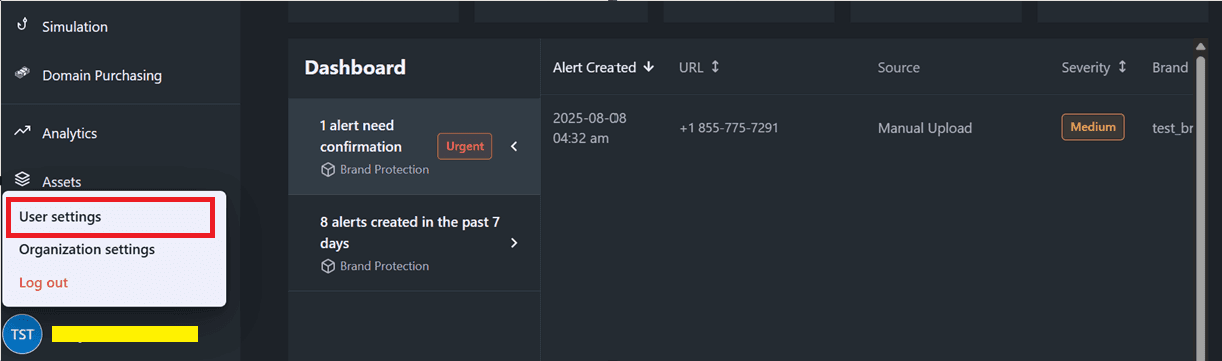
- Click the avatar at the bottom left part of the page (in the sidebar)
- Click "User Settings".
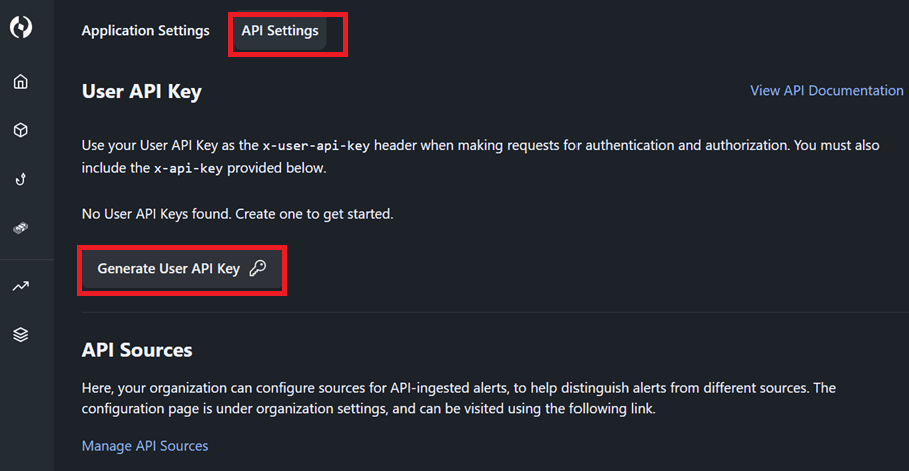
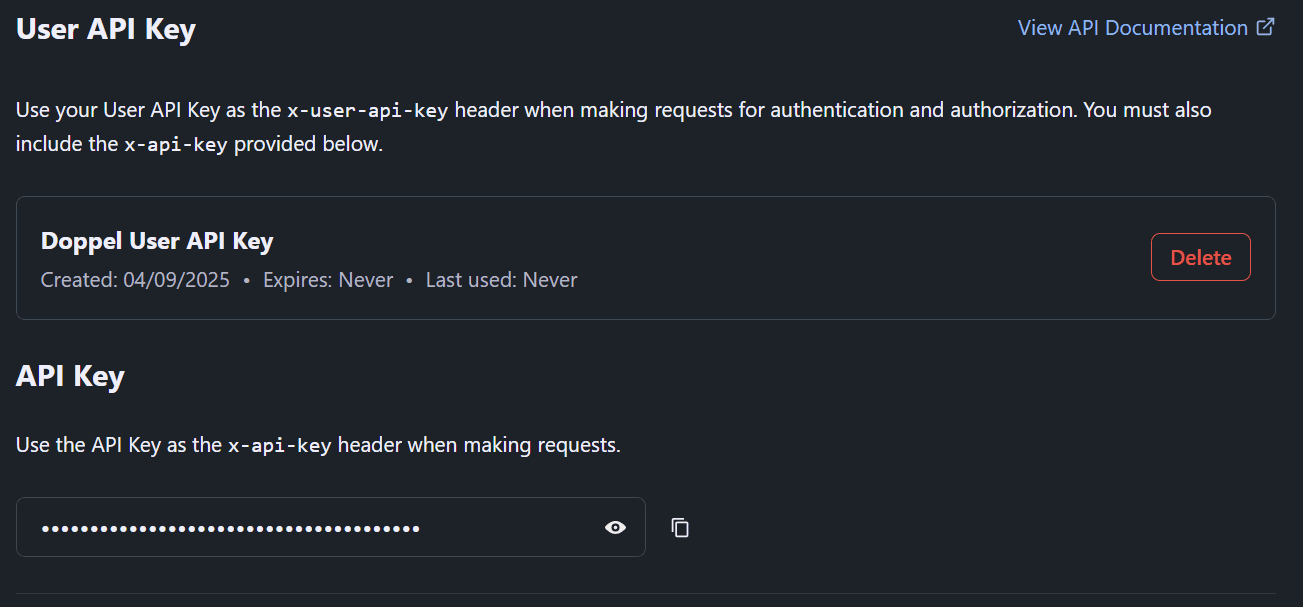
- Click the "API Settings" tab. Then click “Generate User API Key”.
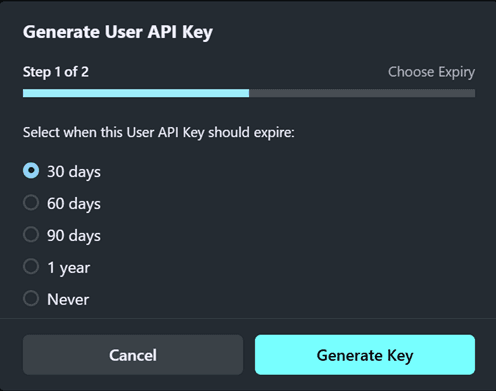
- Set a validity period, then click on “Generate Key”.
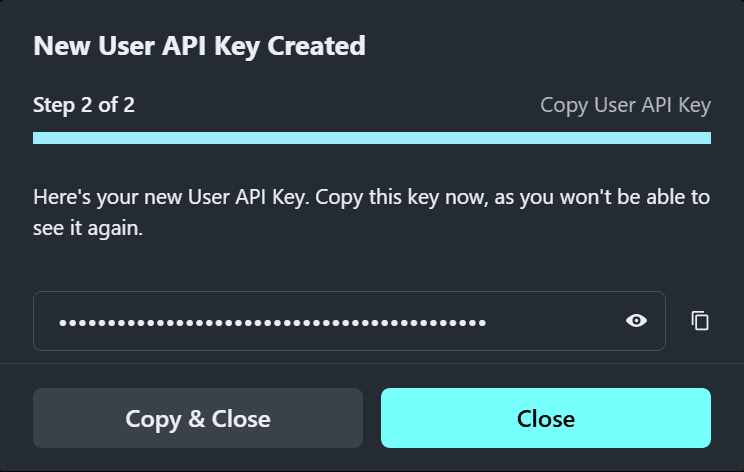
- Copy the key and close the pop-up.
- Just below, the API Key is given (not to be confused with the User API Key).
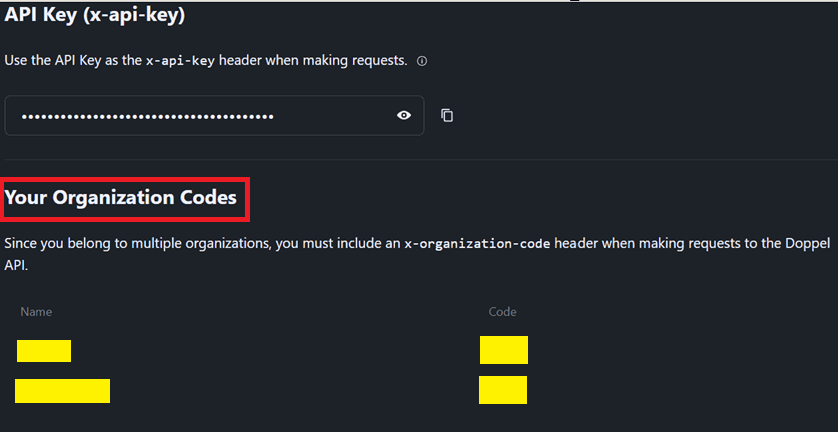
- If the user is part of multiple organizations, the organization code can be found in the Your Organization Code section just below the API Key.
Configuring the Jira Project
Creating Custom Fields
To support Doppel alert data, create custom fields in Jira: Ref
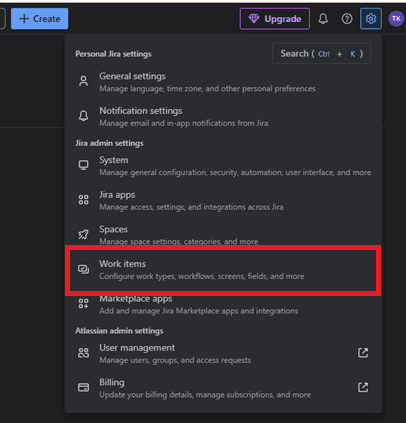
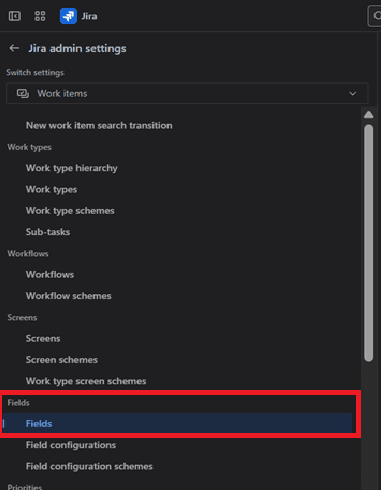
- Go to Settings - Issues or Work Items - Fields
- Click Create New Field and select the field type.
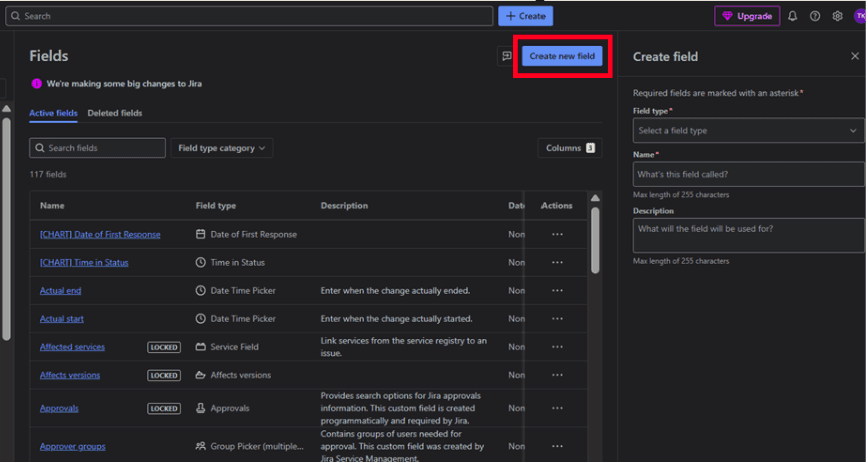
- Create the following custom fields:
Field Name
Type
Options (If applicable)
Queue State
DropDown / Select List (Single Choice)
doppel_review, needs_confirmation, actioned, taken_down, monitoring, archived
Entity State
DropDown / Select List (Single Choice)
active, down, parked
Product
Short Text (Plain Text Only)
—
Platform
Short Text (Plain Text Only)
—
Source
Short Text (Plain Text Only)
—
Last Activity Timestamp
Date / Date Picker
—
Created At
Date / Date Picker
—
Note: The above is just an example of some of the custom fields the user should be creating for this Integration. However, users can configure custom fields as per requirements. Additional custom fields can also be added, e.g., Domain, IP address, etc. Supported field types are short text, date time picker, and dropdowns.
Associating Custom Fields with Issue Types
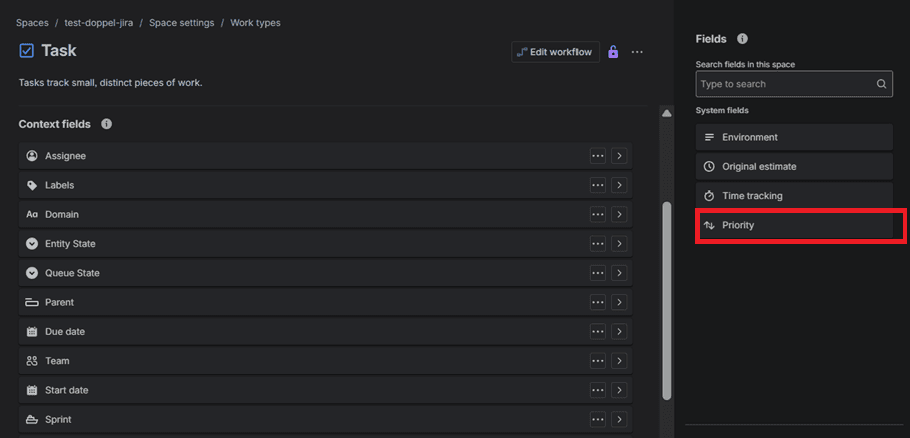
You need to add the custom fields to an Issue Type, so that the fields are available and visible in the respective views. Ref
- Go to your Jira project and select Project/Space Settings.

- Navigate to Issue Types and select the desired issue type (e.g., Bug, Task). In the Fields section, add the custom fields listed above.
Configuring Doppel-Jira App
The Doppel-Jira integration provides a configuration interface within Jira to set up API connectivity and field mappings
Accessing the Application
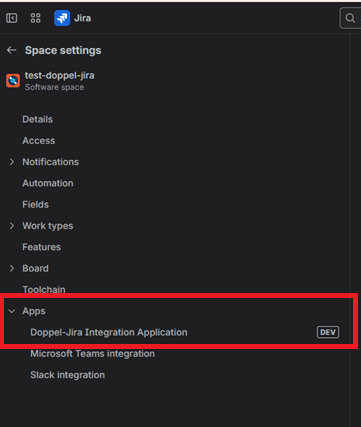
- In Jira, go to your project - Project/Space Settings. Go to Apps
- Select the Doppel-Jira Integration Application to open the configuration interface.
Doppel Configuration
- In the app, go to the Doppel Configuration tab.
- Enter:
- Doppel API Key - API key to authenticate with the Doppel API
- User API Key (Optional) - API key to authenticate with the Doppel API
- Organization Key (Optional) - If the user is part of multiple organizations, the Organization Key is mandatory.
- Historical Polling Days: Number of past days to fetch alerts (e.g., 20).
- Polling Interval (in minutes): Frequency for fetching alerts (e.g., 5).
- Click Test Connectivity to verify the API credentials.
- If successful, a Success message displays: " Credential Verification Successful ."
- Click Save Configuration to store settings.
- Refer to this section for more information

Jira Ticketing Configuration
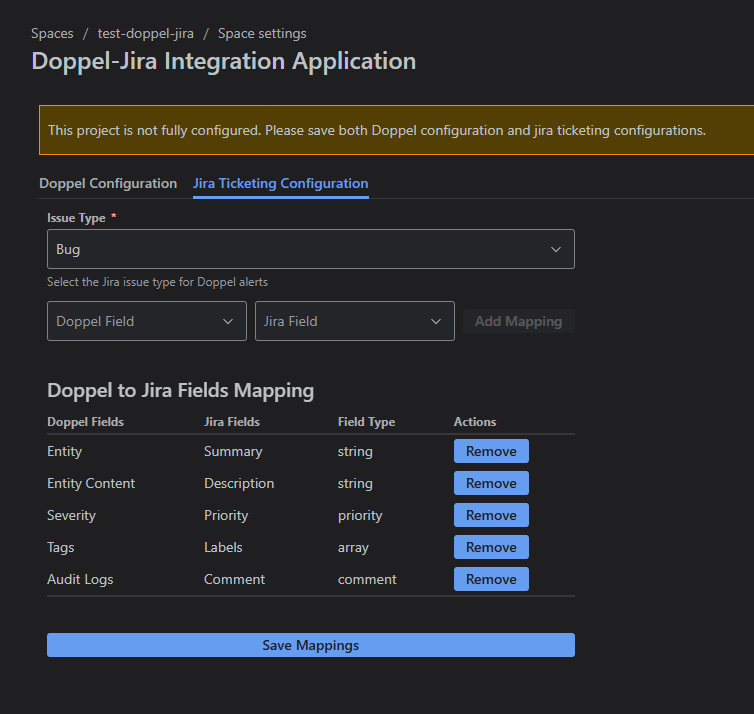
- Go to the Jira Ticketing Configuration tab.
- Select an Issue Type (e.g., Bug, Task).
- Verify given default mappings. Click Remove to delete a mapping if needed.
- Map Doppel fields to Jira fields (e.g., Doppel Source to Jira Source).
- For Entity Content fields, select a Product (e.g., Root Domain) and Attribute (e.g., Domain)
- Click Add Mapping to add each mapping.
- Review mappings in the Doppel to Jira Fields Mapping table.
- Click Save Mappings. A “Mappings saved successfully!” message confirms success.
Note:
- Mapping Entity to Summary is mandatory , as this mapping defines the uniqueness of the Doppel Alerts in JIRA
- Mapping of the JIRA description is mandatory , as it is a required field for creating a JIRA issue. It can be mapped with any string value coming from Doppel.
- For bidirectional features, the user needs to map Queue state and Entity State with proper custom fields with field type options. Ref
- The Jira ticketing configuration should include only those fields that are visible when creating a Jira issue.
Doppel Jira Application Functionality
Automatic Alert Syncing
- The app periodically fetches alerts from Doppel based on the polling interval.
- New alerts create Jira issues with the mapped fields.
- Updated alerts update existing Jira issues, including comments for audit logs.
JIRA to Doppel Sync
- Below fields will trigger a sync between Doppel and Jira:
- Queue State - when updated the issue will be synchronized back to Doppel.
- Entity State - when updated the issue will be synchronized back to Doppel.
- Comment - when a comment is added/updated, the issue will be synchronized back to the Doppel.
Multi-Project Mapping
Administrators can link multiple Jira projects to different Doppel environments or alert types, ensuring that specific security threats (e.g., Brand Protection vs. Executive Protection) route to the correct specialized teams.
Field Mapping Customization
Admins can define which Doppel data points (e.g., last_activity_timestamp , source_url , or severity ) map to specific Jira custom fields, allowing the integration to fit into existing corporate Jira schemas without modification.
Monitoring Logs
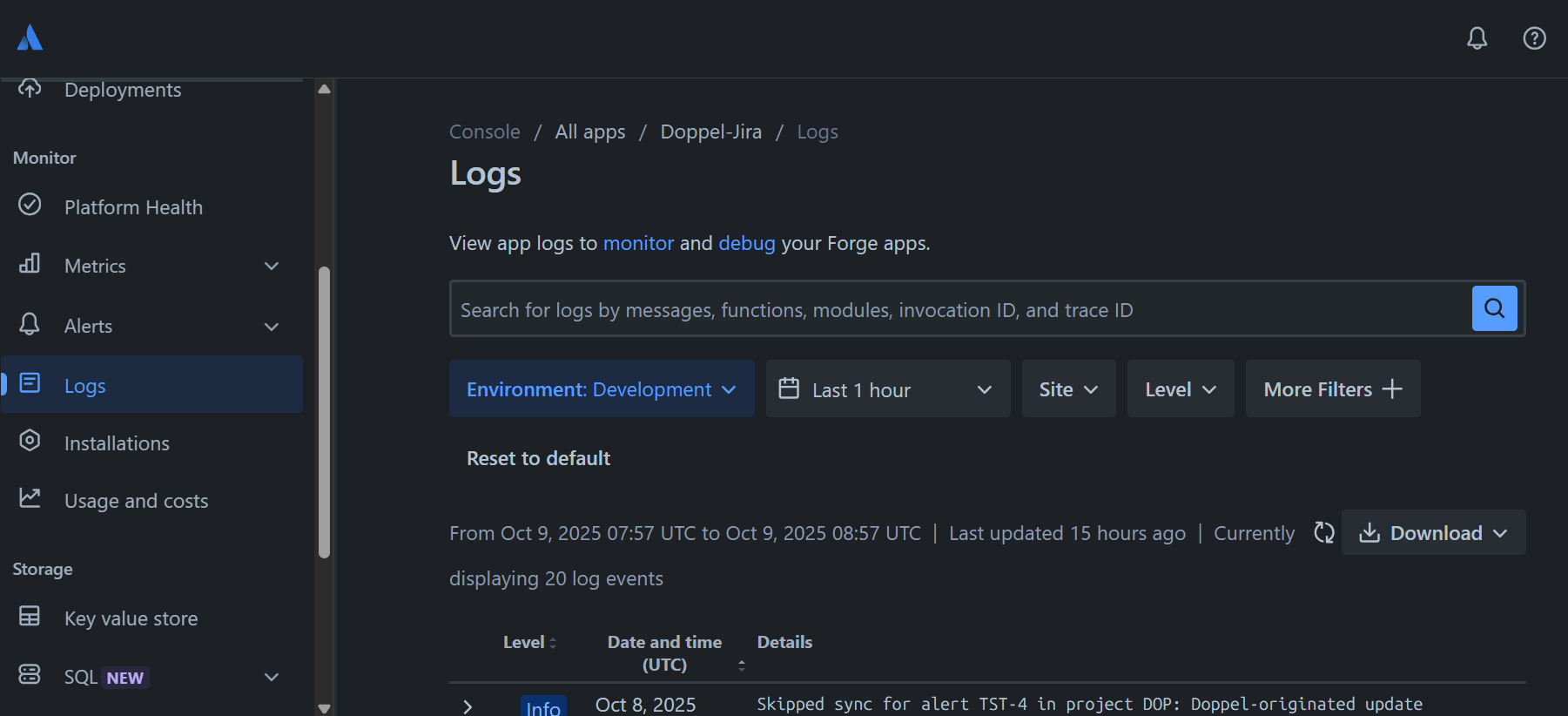
Check the app logs in the Jira admin panel for details on alert processing, errors, or skipped actions. Try this link to check the apps and their logs https://developer.atlassian.com/console/myapps/ (opens in new tab)
Troubleshooting Guide
This section talks about common situations users may face or run into
Issue 1: Deployment Failure
Note: This is applicable until the app is not published. Once published, this section will be removed as no manual deployment will be required.
Solution:
- Ensure Node.js 22.x is installed.
- Run npm install to install dependencies.
- Update Forge CLI: npm install -g @forge/cli.
- Re-authenticate: forge login.
- Check manifest.yml for errors (e.g., correct app.id and permissions).
Issue 2: Configuration Failure
Issue: The Doppel-Jira Integration app fails to save configuration settings or displays errors during setup in the Doppel Configuration tab, preventing successful connectivity or alert syncing.
Solution: Configuration failures often occur due to incorrect API keys, network issues, or invalid input values. Below are detailed steps to troubleshoot and resolve common cases:
- Verify Doppel API Key: Ensure the Doppel API Key is correct. An invalid or expired key will result in a " INVALID_ARGUMENT: API key not valid. Please pass a valid API key. " error when testing connectivity.
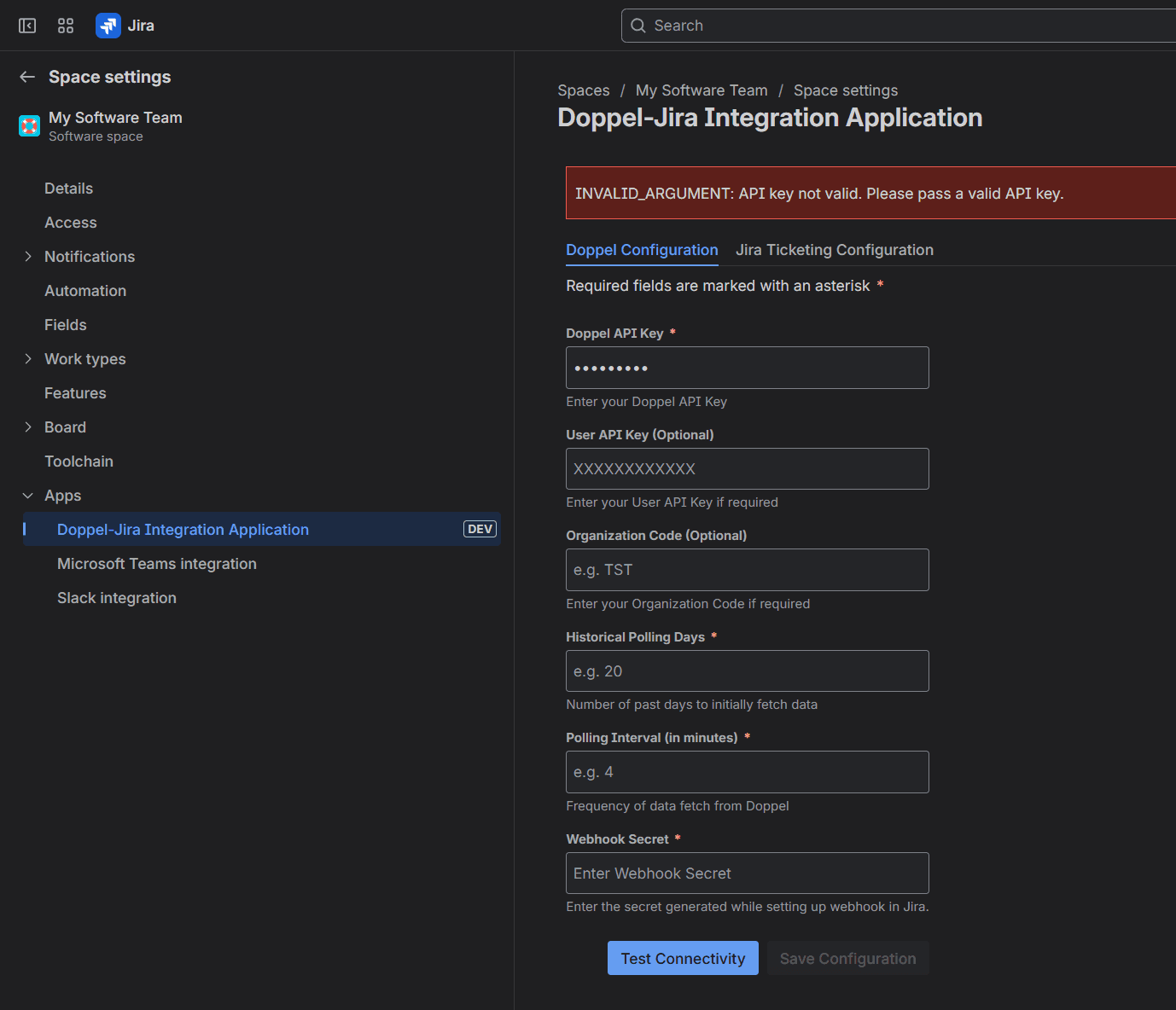
Fig: Invalid API Key
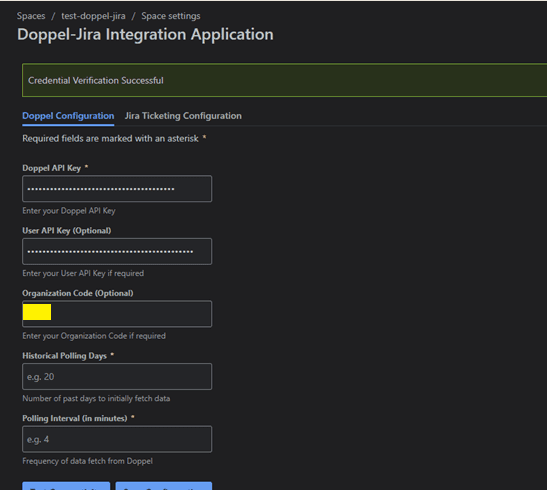
Fig: Test connectivity Successful
- Verify User API Key (If Provided) : Ensure that both the Doppel API Key and the User API Key are provided. An invalid or missing key will result in an error during test connectivity.
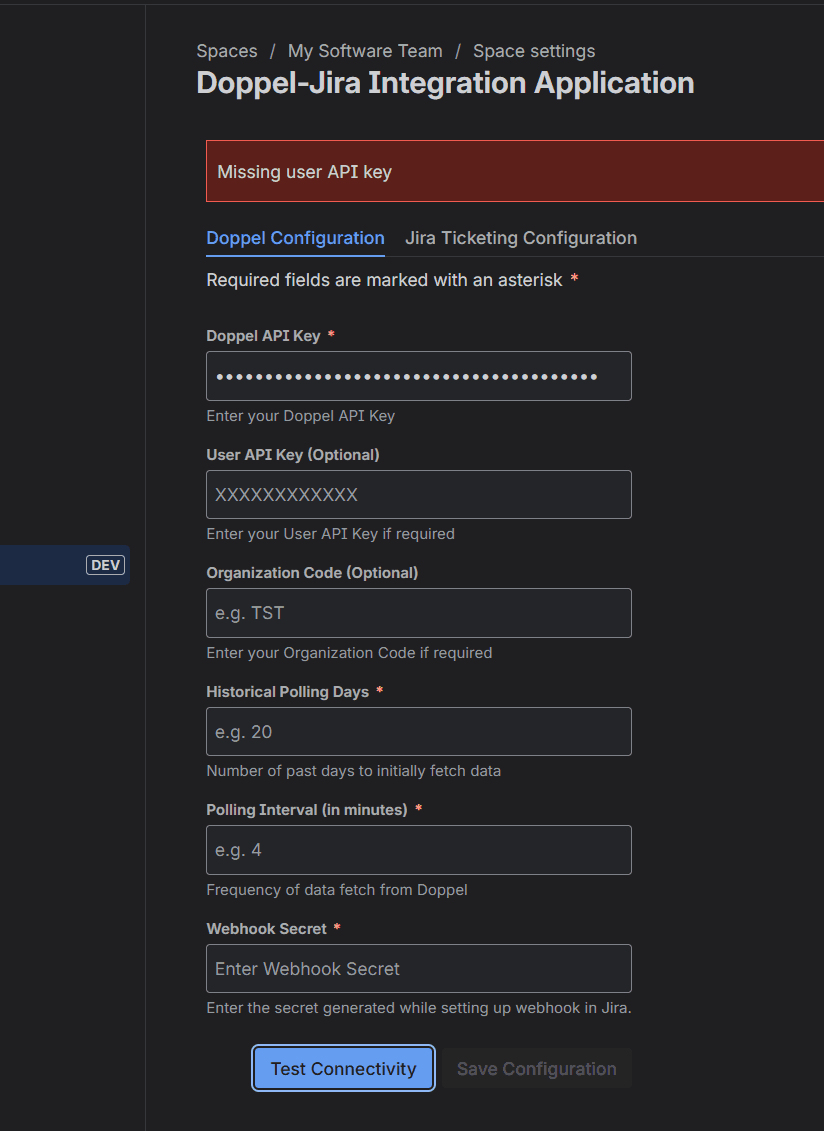
Fig: Missing User API Key
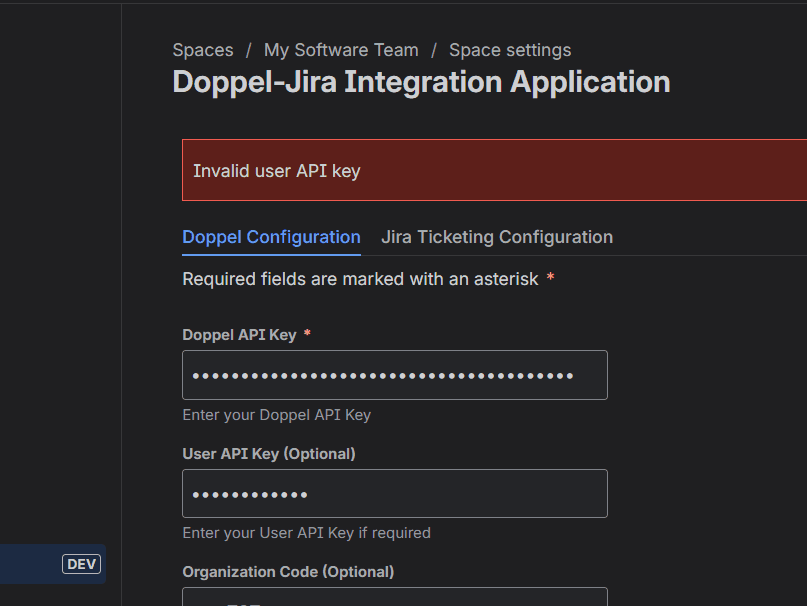
Fig: Invalid User API Key
- Verify Organization Code (If Provided) : If the user is part of multiple organizations, ensure that the correct organization code is provided. An invalid or missing organization code will result in an error during test connectivity.
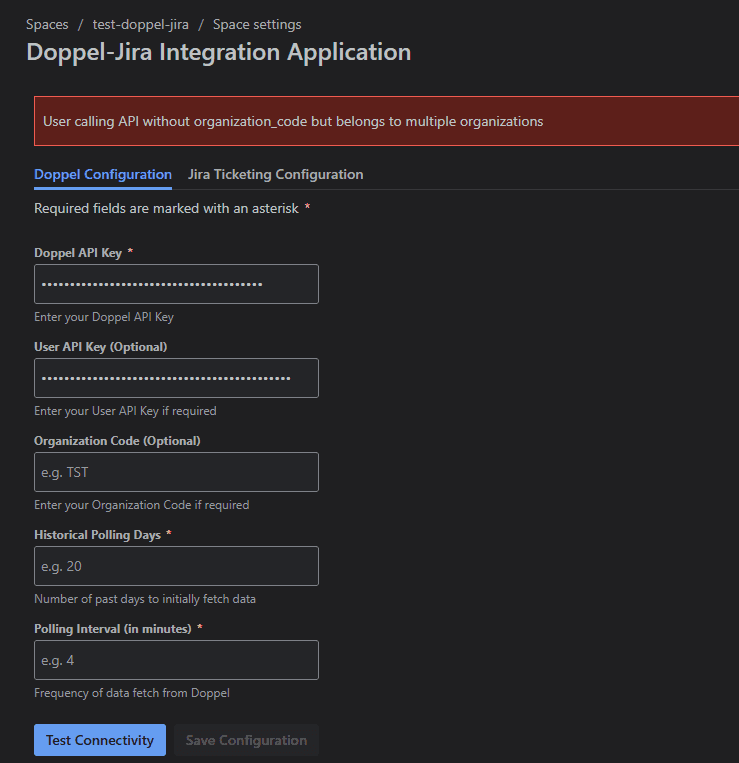
Fig: Missing Organization Code
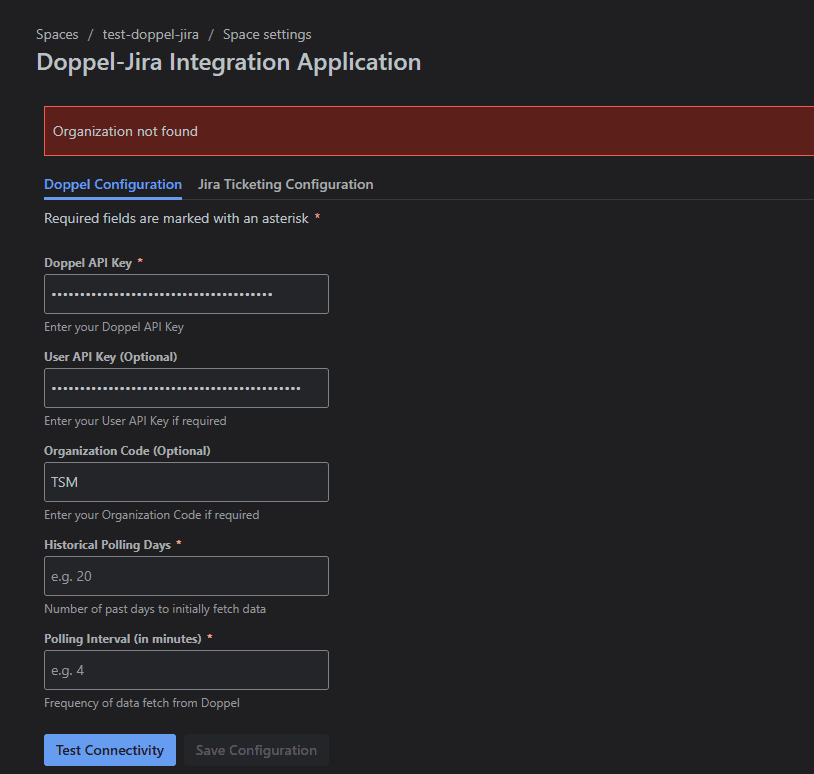
Fig: Invalid Organization Code
- Confirm Valid Input for Polling Settings : Historical Polling Days and Polling Interval must be positive integers (e.g., 20 for Historical Polling Days, 5 for Polling Interval in minutes).
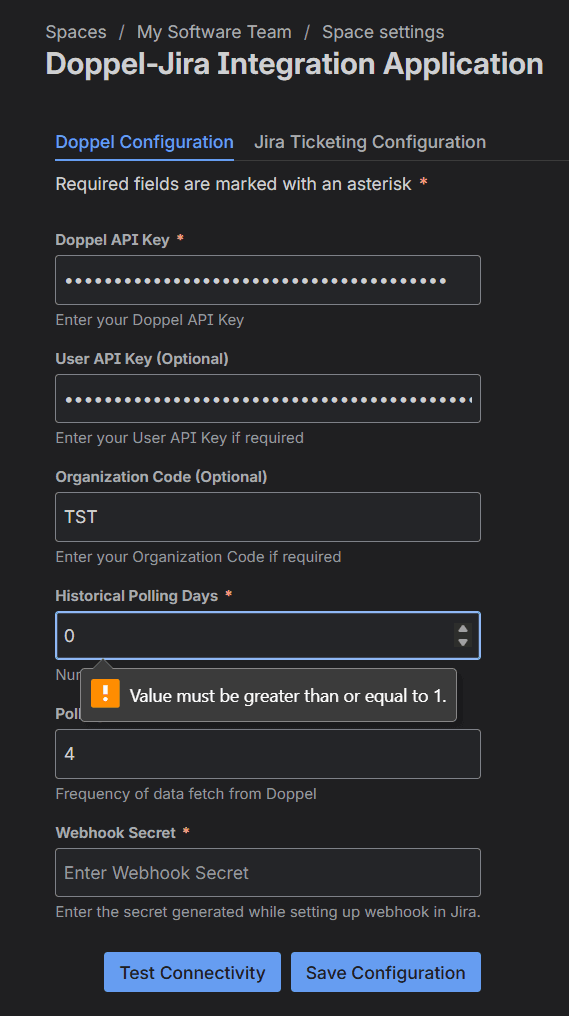
Fig: Invalid Polling Setting
- Confirm Configurations are saved : Ensure that both the Doppel Configuration and the Jira Ticketing Configuration are saved. If any configuration is missing, a warning message will appear when the page loads: “ This project is not fully configured. Please save both Doppel configuration and Jira ticketing configurations.”
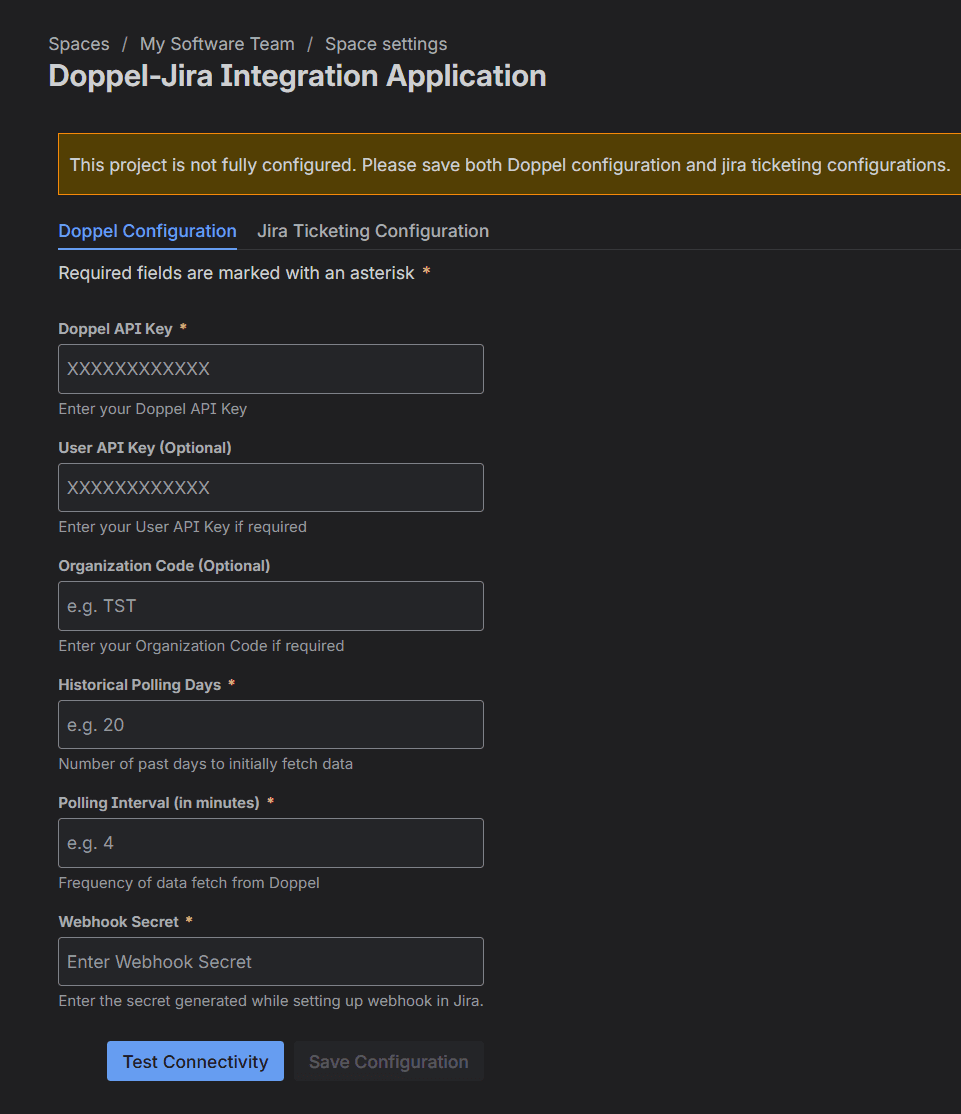
Fig: Missing Configuration Warning
Issue 4: Jira Field Names Not Visible
Issue: While configuring the Doppel JIRA Integration, the Jira field dropdown in the Jira Ticketing Configuration tab does not display available fields.
Solution:
- Refresh the page to reload the field list, as caching or network issues may prevent fields from loading initially.
- Ensure that the selected issue type is associated with the relevant fields in Project Settings - Issue Types. Refer to the Associating Custom Fields with Issue Types section for guidance.
Issue 5: Issues Recreated After App Reinstallation
Issue : If the Doppel-Jira app is uninstalled and reinstalled, existing Jira issues linked to Doppel alerts are recreated instead of updated during the initial alert fetch.
Solution :
- This behavior occurs because the app does not check for existing issues during the first fetch after reinstallation to optimize performance and avoid API timeouts when processing a large number of alerts.
- To prevent duplicate issues, avoid uninstalling and reinstalling the app unless necessary.
- If reinstallation is required, manually delete duplicate issues created post-reinstallation or contact support for assistance in merging or cleaning up issues.
Note: This is expected behavior to prioritize performance during the initial fetch. Future updates may include an optional check for existing issues to handle this scenario.
Issue 6: Delay in creating Jira tickets
Issue : Jira tickets are not created promptly after Doppel alerts are generated, even after configuring the Doppel-Jira Integration app.
Solution :
- Expected Delay (Up to 5 Minutes): Due to limitations in the Forge schedule trigger, the app’s polling mechanism (which fetches Doppel alerts and creates Jira issues) may experience delays of up to 5 minutes.
- If delays persist beyond 5 minutes, contact Doppel Support.
Conclusion
This guide provides step-by-step instructions for installing and using the Doppel-Jira integration app. By deploying the app, configuring Doppel API settings and mapping fields, you can automate Jira ticket creation from Doppel alerts and sync Jira issue updates to Doppel in real time. This integration enhances alerts/issues response efficiency and ensures critical security issues are tracked and resolved, strengthening the organization’s security posture.